Desktop for preparation
Build templates, inspect specifications and test compatible strategies on a dedicated workstation.
Choose the terminal that matches your device, trading style and need for automation.
Trading leveraged products involves significant risk.
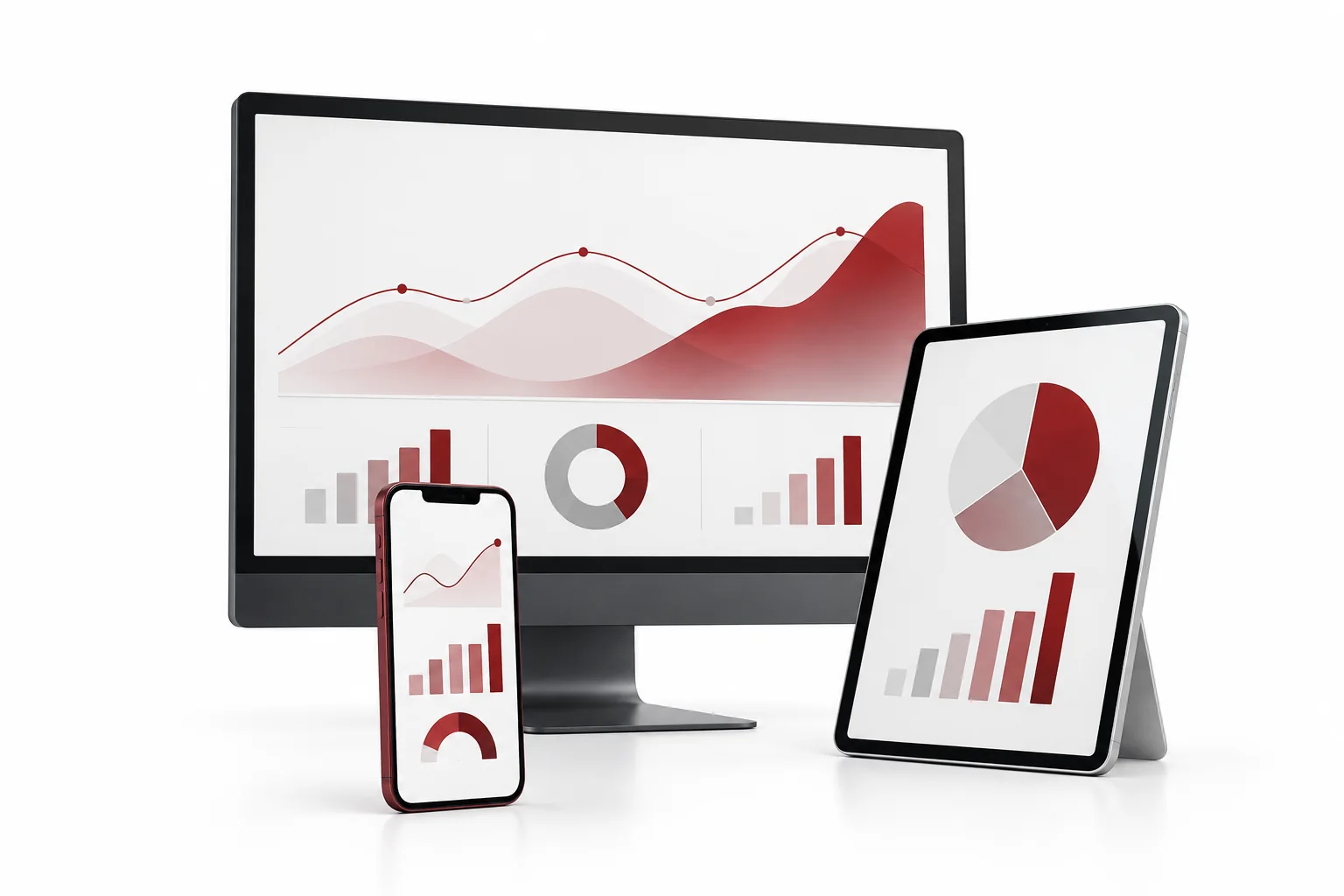
Desktop offers the deepest feature set, while mobile and web terminals are designed for convenient access and monitoring.
| Capability | Windows | Android | Mac / iOS | Web |
|---|---|---|---|---|
| Installation | Required | Required | Required / app | Not required |
| Expert Advisors | Full support | No | No | Limited / no |
| Strategy Tester | Yes | No | No | No |
| Advanced workspace | Full desktop | Mobile layout | Mobile / Mac layout | Browser layout |
| Charting | Full MT5 | Mobile MT5 | Mobile / desktop | Web MT5 |
| Best for | Detailed analysis and automation | Monitoring and mobile orders | Apple-device access | Quick access from a browser |
Many traders combine the full desktop terminal with a mobile app for monitoring and a web terminal as a secondary access route.
Build templates, inspect specifications and test compatible strategies on a dedicated workstation.
Monitor exposure and respond to account events while away from the main terminal.
Use a compatible browser when installation is unavailable or temporary access is needed.
Select the terminal based on capabilities rather than appearance alone.
The full Windows desktop terminal is the standard choice for running Expert Advisors and using the Strategy Tester.
Yes, supported terminals can connect to the same account. Keep credentials secure and monitor all active sessions.
Terminals connected to the same server should receive the same account feed, although screen update timing can differ because of network conditions.
Start with the full desktop terminal when possible, then add mobile or web access for monitoring and flexibility.